Audio Extractor
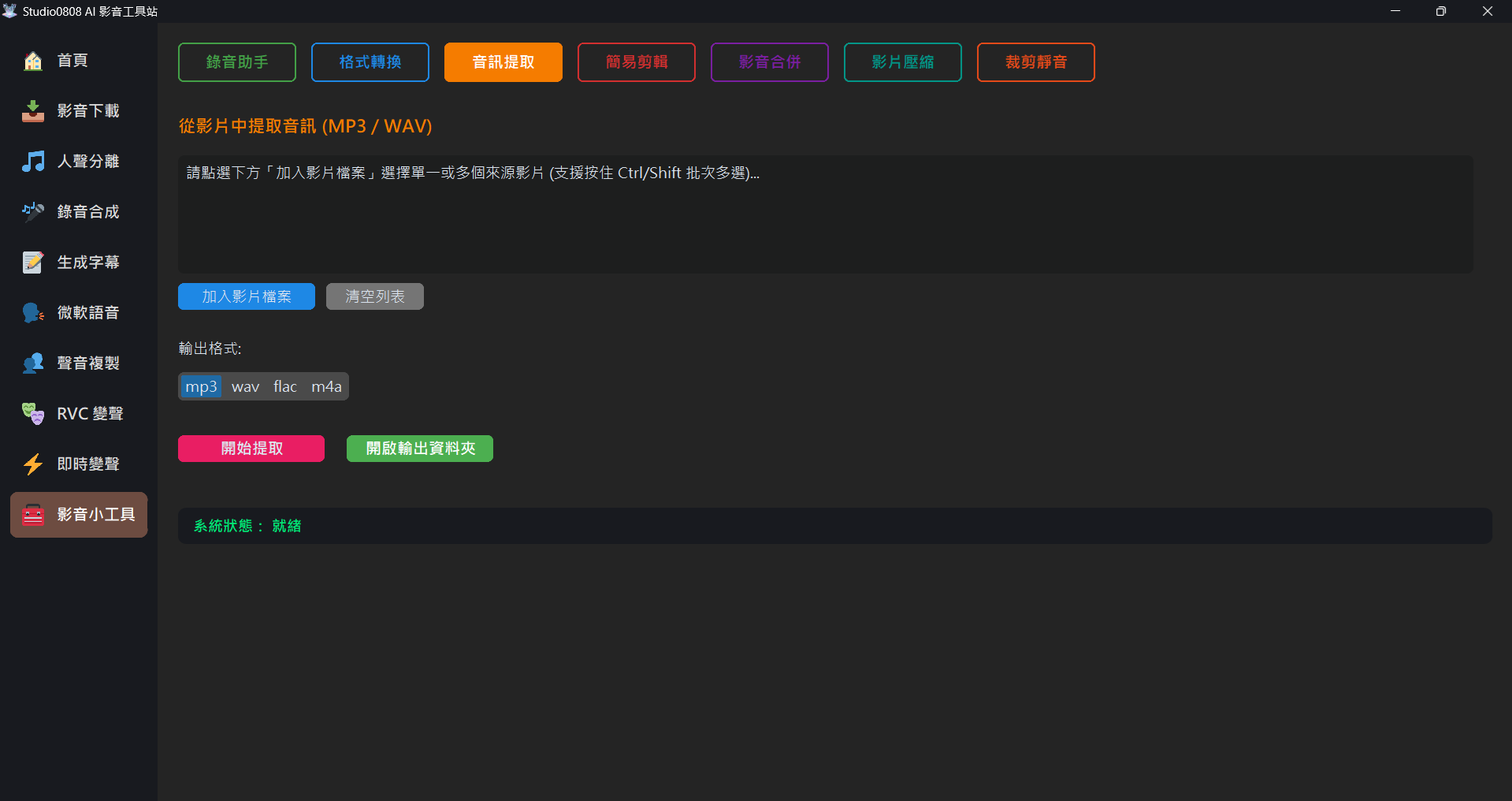
01. Feature Introduction
Audio Extractor is specifically designed for MP4 and MKV multimedia files with both video and audio channels. It can completely strip away the visuals and extract the clean underlying stereo audio track.
- Keep only the audio portion of large video files to save space.
- Create source files for subsequent AI vocal separation or speech recognition.
02. Step-by-Step Operations
- Add File: Click the "Add Video File" button on the screen and select the video file
you want to extract audio from (.mp4, .mkv, etc.).
💡 Batch Processing Supported: You can select multiple files at once by holding Ctrl or Shift. The system will automatically queue and process them sequentially.
- Select Output Format: Choose the audio format you want to generate from the dropdown menu: "MP3 (Universal lossy format)", "WAV (Lossless audio)", "FLAC (High sample rate, high compression lossless)".
- Start Extraction: After verifying the file is correct, click the pink "Start Extraction" button.
💡 Tip: Extracted files will be saved in the Outputs/Tools folder, and you can click
"Open Output Folder" at any time to view the results. This type of extraction is usually very fast
(can be completed within 30 seconds).
03. Frequently Asked Questions (Q&A)
Q: Does the volume become lower or higher after extraction?
A: The audio extractor extracts at a 1:1 ratio by default and will not re-compress the audio gain settings. If you find the sound weird, it is usually because of deviations in the original video's recording environment.
Q: Can it extract videos with multi-track audio in different languages?
A: By default, the system only processes the most important "Main Audio Track (Track 0 or default playback track)". The second language or secondary tracks will be ignored by the system to ensure a streamlined process.