Real-Time VC: Mastering Voice Conversion
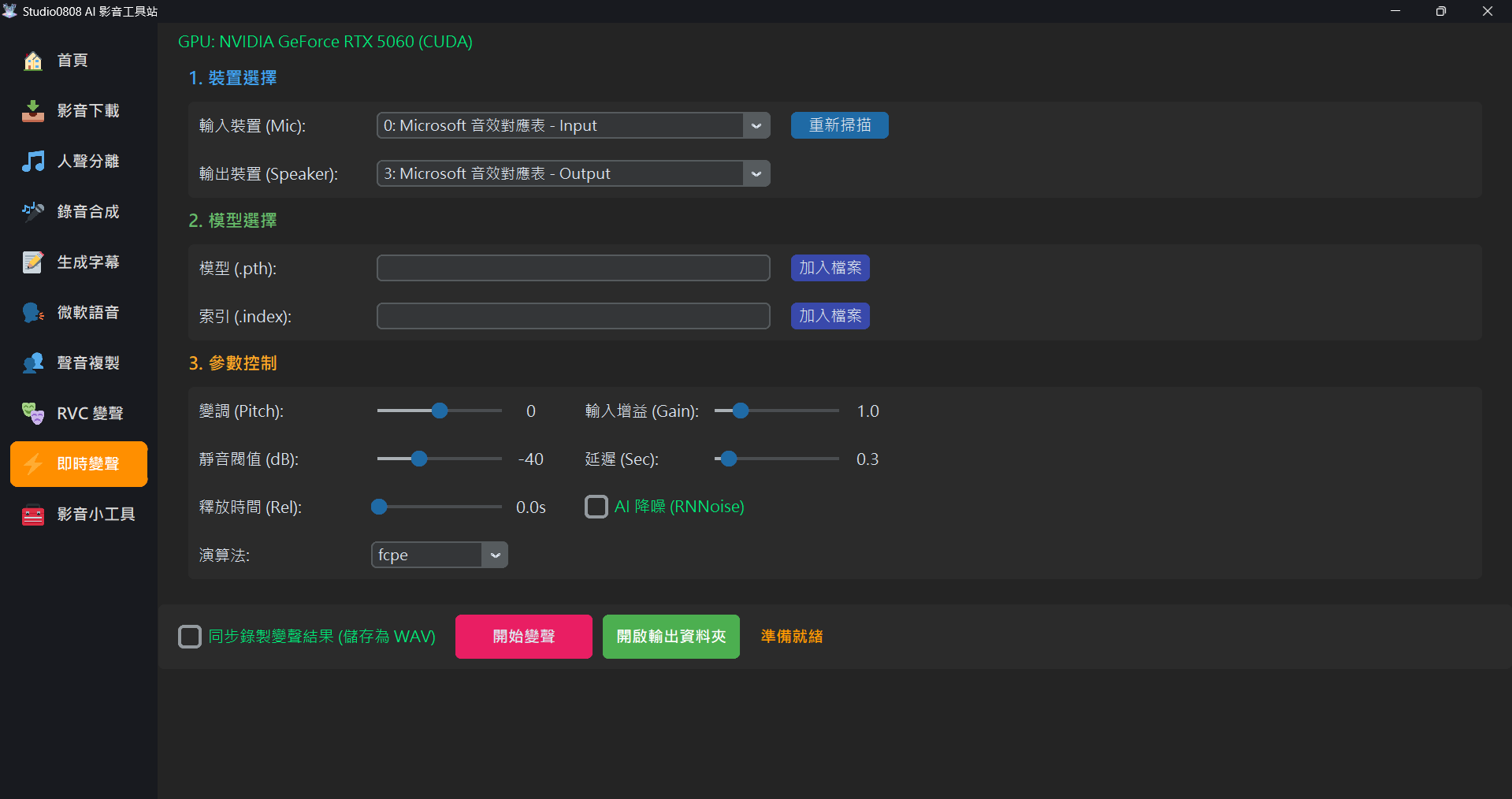
01. Basic Concepts & Hardware
Real-time Voice Conversion is demanding. It slices your voice into fragments, processes them through AI, and plays them back instantly.
💡 Is your voice stuttering?
If you see Using CPU mode in red, the AI load is on your processor. An NVIDIA RTX graphics card is strongly recommended for smooth conversion.
02. Audio Routing (How others hear you)
By default, only you can hear the changed voice. To use it in Discord or OBS, you must install a "virtual audio cable."
Setup & Routing Steps
- In our software:
- Input Device (Mic): Your physical microphone.
👉 Recommended: Physical Microphone (e.g.,Realtek AudioorUSB Device).
⚠️ Critical: NEVER selectCABLE Outputas the mic here. - Output Device (Speaker): Where the converted voice goes.
👉 To Discord/OBS: SelectCABLE Input (VB-Audio Virtual Cable).
👉 To hear yourself: Select your speakers or headset.
- Input Device (Mic): Your physical microphone.
- In Discord/OBS Settings:
- Input Device: Select
CABLE Output (VB-Audio Virtual Cable).
- Input Device: Select
📋 Common Audio Devices Explained
| Device | Type | Description |
|---|---|---|
Microsoft Sound Mapper |
✅ Default | Points to your current Windows default recording/playback device. |
CABLE Input (VB-Audio Cable) |
❓ Missing | Virtual cable. If not visible, please install as described below. |
Microphone (Realtek / USB Audio) |
⭐ Rec. Mic | Physical microphone. Best quality and lowest latency. |
Headset (Hands-Free) |
❌ Avoid | Bluetooth call mode. Poor quality (8kHz) causes severe AI glitches. |
📡 VB-Cable Installation Guide
If you don't see CABLE in the list, follow these steps:
- Download: Visit the VB-Audio Website and download **VB-CABLE Driver**.
- Install: Extract, right-click
VBCABLE_Setup_x64.exe, and "Run as administrator". - Refresh: Once installed, **restart our app** and click "Rescan".
💡 Flow: You speaking ➔ Studio0808 (Output: CABLE Input) ➔ Discord (Input: CABLE Output).
03. Core Parameters
1. Pitch Shift
- Male to Female: Try +12.
- Female to Male: Try -12.
2. Input Gain
If you hear popping, lower the Gain (e.g., 0.8) to keep the signal clean.
3. Silence Threshold
Filters background noise.AI won't run when your volume is below this level. Move to the right if you hear constant noise.
4. Release Time (Rel)
Controls how long the AI keeps generating sound after you stop speaking. Recommended: 0.2s - 0.5s for smooth sentence endings. ⚠️ Note: If you experience an echo loop when using "Sound Mapper," set this to 0.0s.
5. Latency (Sec)
The size of each audio chunk. Faster GPUs (RTX 40/50 series) can handle lower values (0.2s ~ 0.4s). Increase this value if you hear stuttering or dropouts.
🚀 Lag-Prevention Technology
Our system features a smart buffer-clearing mechanism. If the GPU falls behind, it automatically discards old audio chunks to ensure that the output is always real-time, preventing any perceived lag or "delayed echo."