Edge-TTS Voice Generator
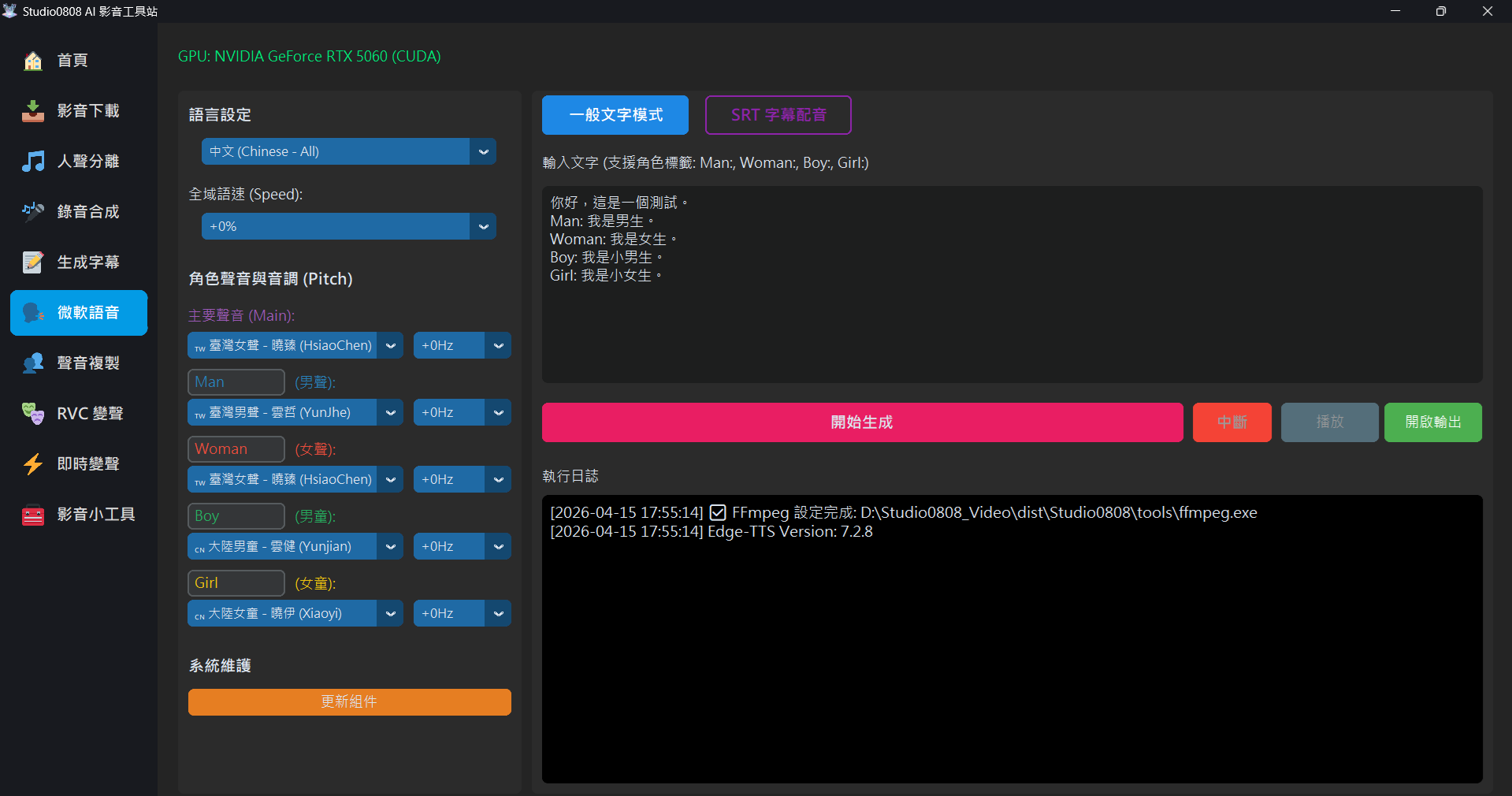
01. Core Technology Introduction
This application integrates Microsoft's latest Edge-TTS (Azure Cognitive Services) technology, allowing you to use high-quality AI neural network voices for free without needing to apply for complex API keys.
Unlike traditional robotic voices, Neural TTS models can generate extremely natural human voices with intonation and emotion, widely used for:
- 🎬 Video Narration: Quickly dubbing explainer videos and shorts.
- 📚 Audiobook Creation: Reading long articles aloud.
- 🎤 Roleplaying: Performing dialogues by setting up multiple characters voiced by one person.
02. Feature Highlights
🌍 Multi-Language Support
The system built-in supports multiple language models, including:
- Chinese: Taiwanese accents (HsiaoChen, YunZhe), Mainland accents (Xiaoxiao, Yunxi), Cantonese, etc.
- English: American (Jenny), British (Ryan), etc., with standard and authentic pronunciation.
- Japanese, Korean & Others: Complete support for Japanese, Korean, French, German, etc.
🎛️ Advanced Parameter Control New!
To meet more detailed voice needs, this closed beta version adds powerful independent control features:
- Speed: Supports global adjustment from
-50%(slow) to+50%(fast). - Pitch: Supports independent pitch settings for 5
roles.
- Want the **Boy**'s voice to sound more childish? Try
+20Hzor+30Hz. - Want the **Man**'s voice to sound deeper? Try
-20Hzor-30Hz.
- Want the **Boy**'s voice to sound more childish? Try
03. Usage Modes
📝 Plain Text Mode
Simply enter text to generate speech. It supports a special **"Role Tag"** feature, allowing you to switch between different voices in the same text block:
Man: Hello, I am the father.
Woman: Hi, I am the mother.
Boy: I am Jimmy!
Girl: I am Jenny~
(No tag): This is the narrator's voice.
The system will automatically switch to the corresponding role settings (including your independent pitch settings) based on the tags.
🎬 SRT Dubbing Mode
Load an .srt subtitle file directly, and the system will generate speech based on the
subtitle's timeline.
- Smart Anti-Overlap: If the previous sentence hasn't finished, the next sentence will automatically be delayed to ensure voices don't overlap.
- SRT Cleaner: For bilingual subtitles (e.g., Chinese-Japanese), you can use the 🧹 Keep Chinese Only feature to remove the foreign language with one click, preventing the AI from reading unnecessary original text.
04. Troubleshooting (Q&A)
Q: Receiving a "403 Forbidden" error?
A: This is because Microsoft updated their API verification mechanism. Please click the 🔄 Update Core (Fix 403) button in the bottom left of the interface. The
system will automatically update the edge-tts core component to fix this issue.
Q: Why does it say "[Language Model] cannot read Chinese content"?
A: While some foreign models (like Japanese) can read Kanji, their pronunciation is usually inaccurate. If you input Chinese content but select a foreign model (like German, French), the system will automatically detect this and issue a clear warning (precisely indicating which model mismatches) to prevent generating erroneous or silent audio.
Q: Yunze's voice is missing?
A: It appears Microsoft officially removed the Yunze model. We recommend switching to **Yunxi** and using **Pitch adjustment** to simulate a similar voice.
Q: How can I play the generated voice directly to my friends on Discord?
A: Since speech synthesis outputs audio to your speakers, your friends can't hear it. You can share it in two ways:
- Use Stereo Mix: Change your microphone in Discord to "Stereo Mix", so your friends can hear the synthesized voice playing from your computer (but they will also hear any videos you are watching).
- Use VB-Audio Virtual Cable (Recommended): Go to Windows Sound
Settings, assign the playback of the software (or default system output) to
CABLE Input, and then selectCABLE Outputas your microphone in Discord. This cleanly transmits just the synthesized voice!
05. Technical Specifications (Specs)
- Core Engine: Microsoft Edge Read Aloud API
- Format: MP3 (Intermediate calculation format) / WAV (Final output container, convenient for post-production)
- Sample Rate: 24kHz / 48kHz (High-resolution audio)
- Network: Must maintain an active internet connection (uses cloud-based real-time computation)