Video Compressor
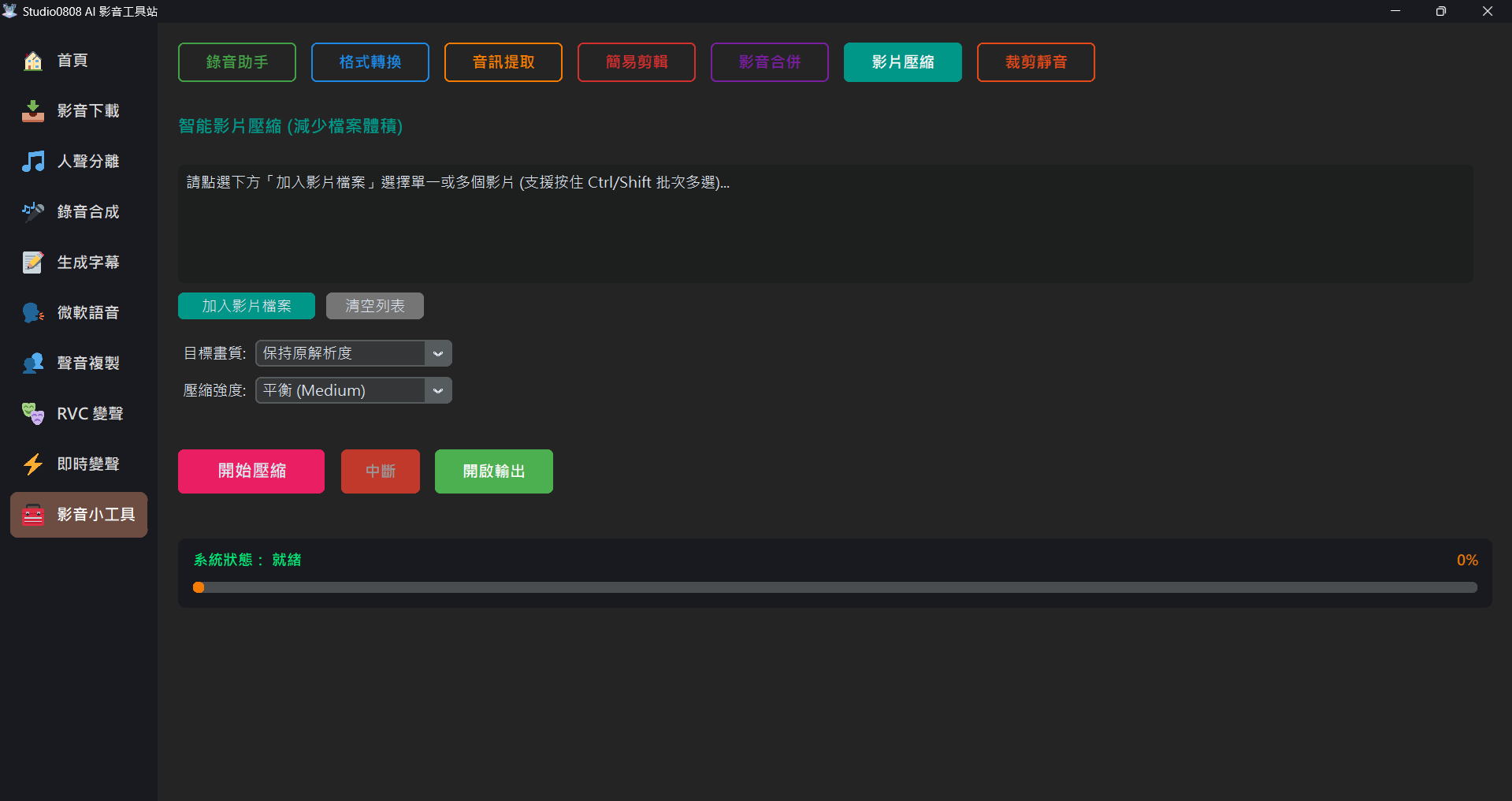
01. Overview
Smart Video Compressor is a highly efficient video slimming tool. When your video file is too large to upload to social platforms, or occupies too much hard drive space, this tool can help you significantly reduce the file size with virtually indistinguishable visual differences.
This module uses the industry-standard FFmpeg x264 CRF (Constant Rate Factor) encoding algorithm under the hood, perfectly balancing file size and visual quality.
02. Step-by-Step Operations
- Load Video: Click "Add Video File" to choose the video you want to compress.
- Select Target Quality: You can choose to maintain original resolution, or shrink a 4K video to 1080p, 720p or even 480p to achieve an extremely small file size.
- Select Compression Strength:
- High Quality (Larger file): Suitable for videos that need to preserve extreme details, applying less compression.
- Balanced (Medium): The recommended option. It effectively reduces file sizes by around 50% or more while maintaining excellent visual quality.
- Strong Compression (Tiny file): Applicable for preview-only purposes, or presentation/dialog videos with little visual changes.
💡 Batch Processing Supported: You can select multiple videos at once by holding Ctrl or Shift. The system will automatically queue and compress them seamlessly.
- Start Compression: Click the orange button to start, and texts and progress bars will prompt you regarding the current processing progress below.
- Cancel Midway: If you realize you entered wrong parameter settings, you can click the "Interrupt" button to cancel the compression task.
03. Frequently Asked Questions (Q&A)
Q: Why did the compressed file size actually become larger?
A: If your original video has already been heavily compressed by a platform (like Facebook or LINE) and you selected "High Quality" for re-encoding, the tool might attempt to use more data bits to describe already blurred frames, resulting in a larger file. In this case, you can try lowering the compression strength, or simply don't process this particular video.
Q: How long does the compression process take?
A: This depends on the duration of the video, target resolution, and your CPU performance. Smart compression is a computationally intensive task, so batch processing during idle computer times is recommended.