VIDEO DOWNLOADER CORE
01. Core Tech: Why do we merge files?
Ever wonder why downloading a high-quality video shows Merging formats in the logs, or downloads both an mp4 and an m4a file?
This is the key mechanism our application uses to achieve ultimate video quality.
The Mechanism
To save bandwidth, modern platforms like YouTube structure their data streams as follows:
- 720p and below: Video and audio are bundled in the same stream.
- 1080p / 2K / 4K: The Video and Audio streams are transmitted completely separately.
Therefore, to obtain a 4K video, our core engine must perform the following precise operations:
(Muted mp4)
(No-video m4a)
The complex merging process you see in the logs (downloading mp4 and webm → putting into mkv → extracting to mp4 → deleting temp files) is actually the perfect compromise for "Max Quality" and "Max Speed".
- Separate Downloads: YouTube stores its highest-quality video (often
H.264/AV1 in
.mp4) and highest-quality audio (often Opus in.webm) separately. The program must fetch the best of both worlds individually. - Why MKV first?: The MP4 container has strict format requirements and might reject advanced uncompressed streams. MKV, known as the "Universal Container," can safely pack any format together instantly without time-consuming re-encoding (which ruins quality). It acts as a safe intermediate stage.
- Why MP4 at the end?: Since your target format is MP4, FFmpeg takes the safely packed MKV and performs one final "Lossless Repackaging (Remuxing)." This guarantees the output is an MP4 without any destructive "re-rendering."
💡 Conclusion: These seemingly busy steps are actually instant, lossless container swaps. It is hundreds of times faster than forcing your GPU to re-render the video, guaranteeing 100% preservation of YouTube's original maximum quality!
02. Interface Operation Details
Basic Operation & Layout
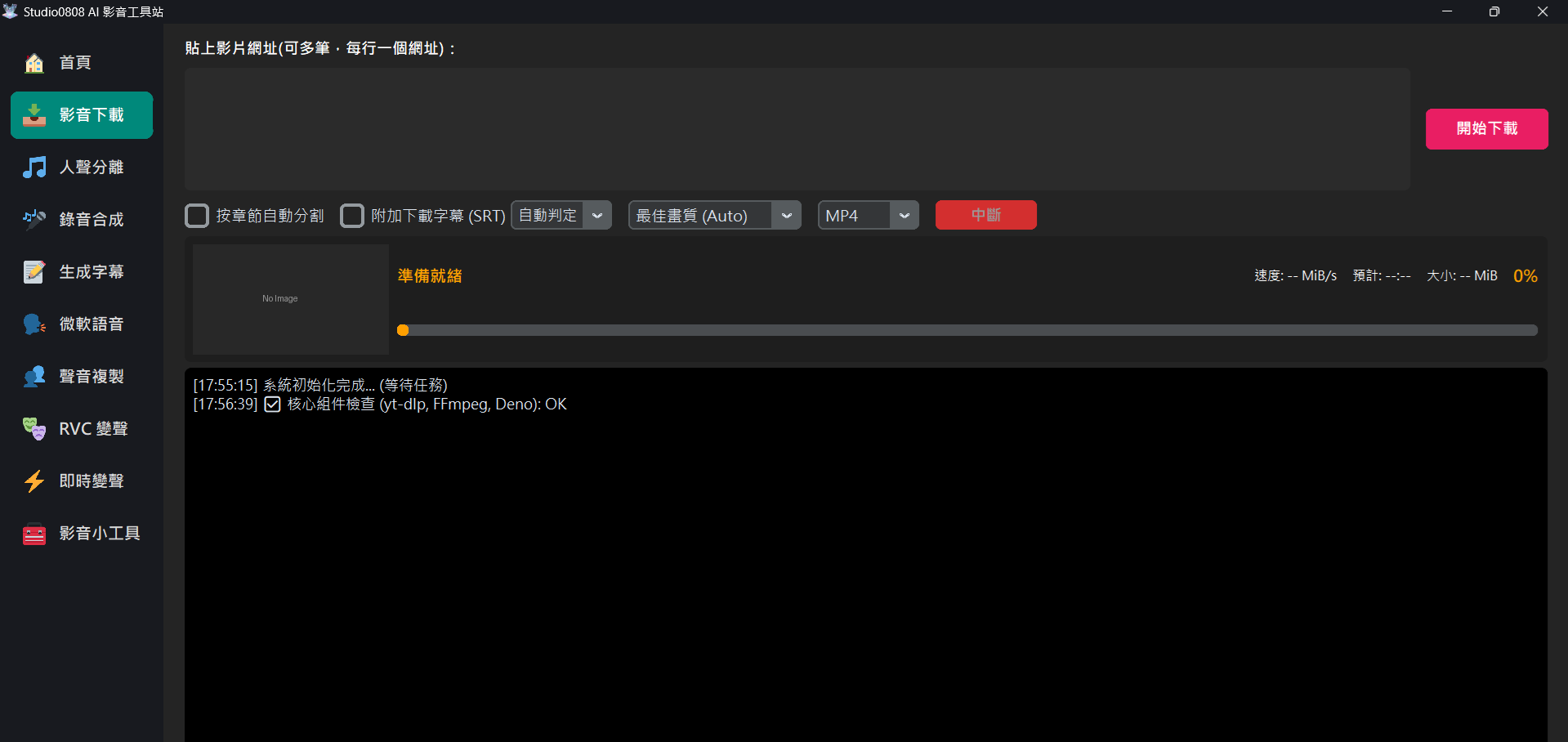
- Paste URLs: Paste links from YouTube, Facebook, Instagram, etc., into the top
Paste video URL(s) (One per line):field. - Settings (Left to Right): The UI uses an intuitive left-to-right logic:
- ☑ Auto-Split Chapters: If the video has built-in chapters, it will be precisely sliced after downloading (mutually exclusive with "Download Specific Segment").
- ☑ Download Specific Segment: Enter start and end times to download only a specific portion of the video (supports formats like
hh:mm:ss,mm:ss, or raw seconds like90; mutually exclusive with "Auto-Split Chapters"). - ☑ Attach Subtitles: If the video provides subtitles, they will be downloaded along with it.
- Select Sub Language: Specify the target subtitle language.
- Select Quality: Defaults to
Best Quality (Auto). - Select Format: Defaults to
MP4, but you can also chooseMP3for audio-only.
- Start Download: Click the orange button, and the app will automatically handle downloading, merging, processing subtitles, and chapter slicing.
Batch & Playlist Support
A fully upgraded queuing system for batch downloading:
- Multi-line URLs: Paste multiple video links (one per line) in the input box. Click Download, and the system processes them sequentially.
- Auto-Resolve Playlists: If your pasted URL contains the
&list=parameter, the app intelligently detects this and pops up a brand-new Paginated Selection Window!
The window displays 50 entries per page with Select Page / Deselect Page / Select All / Deselect All quick controls — no more item count limit. Add your selection to the download queue with one click.
Advanced Feature: Auto-Split Chapters
If you check □ Auto-Split Chapters:
- The system detects if the video has native "time-stamped chapters".
- If there are no built-in chapters, it attempts to use AI to analyze the video
description, looking for timestamps like
03:20 - Chorus. - Once the download finishes, FFmpeg is invoked to perform an accurate, lossless slice, breaking a long video into multiple smaller clips, making it easier for you to collect or edit.
Core Update
The Update Core button at the top right is crucial. Click it to automatically check and install the following three essential components:
yt-dlp: The video download engine. YouTube frequently changes its algorithms, so keeping it updated prevents download failures.FFmpeg: The audio/video merge and conversion tool, used for multi-track merging and format conversion.Deno: A JavaScript runtime used to bypass YouTube's EJS challenge verification, ensuring high download success rates.
If you encounter a download error, simply click this button to update all components to the latest version. This usually fixes the issue without reinstalling the entire software.
03. Smart Subtitle System & Protection
This update introduces a brand new subtitle processing engine, solving common pain points regarding YouTube subtitle downloads:
Smart Language Picker
- Target Lock: You can directly choose target languages like "Traditional Chinese", "English", or "Japanese" on the UI.
- Official First: The program prioritizes the "Official Accurate Subtitles" uploaded by the creator.
- AI Fallback: If no official subtitles exist, the system "seamlessly switches" to fetch YouTube's Auto-Generated (AI) subtitles, guaranteeing you'll always have captions.
- Scraping Junk Tracks: It automatically filters out messy auto-translated tracks
(like "Simplified to Traditional" or "English to Chinese"), ensuring the downloaded
.srtfile is clean and unique.
HTTP Error 429 Protection & Auto-Retry
Previously, forcing the download of unsupported AI subtitles (or being strictly blocked by YouTube's servers) would crash the downloader, throwing an HTTP Error 429: Too Many Requests error.
Now, we have added an auto-protection mechanism:
- The moment the system detects a download block due to subtitles (Error 429), it will issue a
warning:
⚠️ Detected YouTube server blocking subtitles... - The application will automatically cancel the subtitle task in 0 seconds.
- It then automatically re-connects to safely download the high-quality video itself. The primary video download task will absolutely never fail just because of a subtitle problem!
04. Supported Platforms
Powered by the robust yt-dlp engine, this application supports over 1000+ video sites
worldwide. Here are the most popular supported platforms:
(and many more... if there's a video on a page, it's worth trying)
05. Q&A
list= parameter, the
system automatically pops up a paginated window letting you select from the entire list (no item limit), with quick Select/Deselect All controls.threadsdownloader.com in your browser. Simply press Ctrl+V in the site's input field and click Load Videos to complete the download.Deno JavaScript runtime, enabling yt-dlp to bypass this challenge. Try the download again afterwards.00:01:00, end 00:02:30, or raw seconds like 90). The system will fetch and stream only that specific segment, saving you time and bandwidth.