GPT-SoVITS Voice Cloning Engine
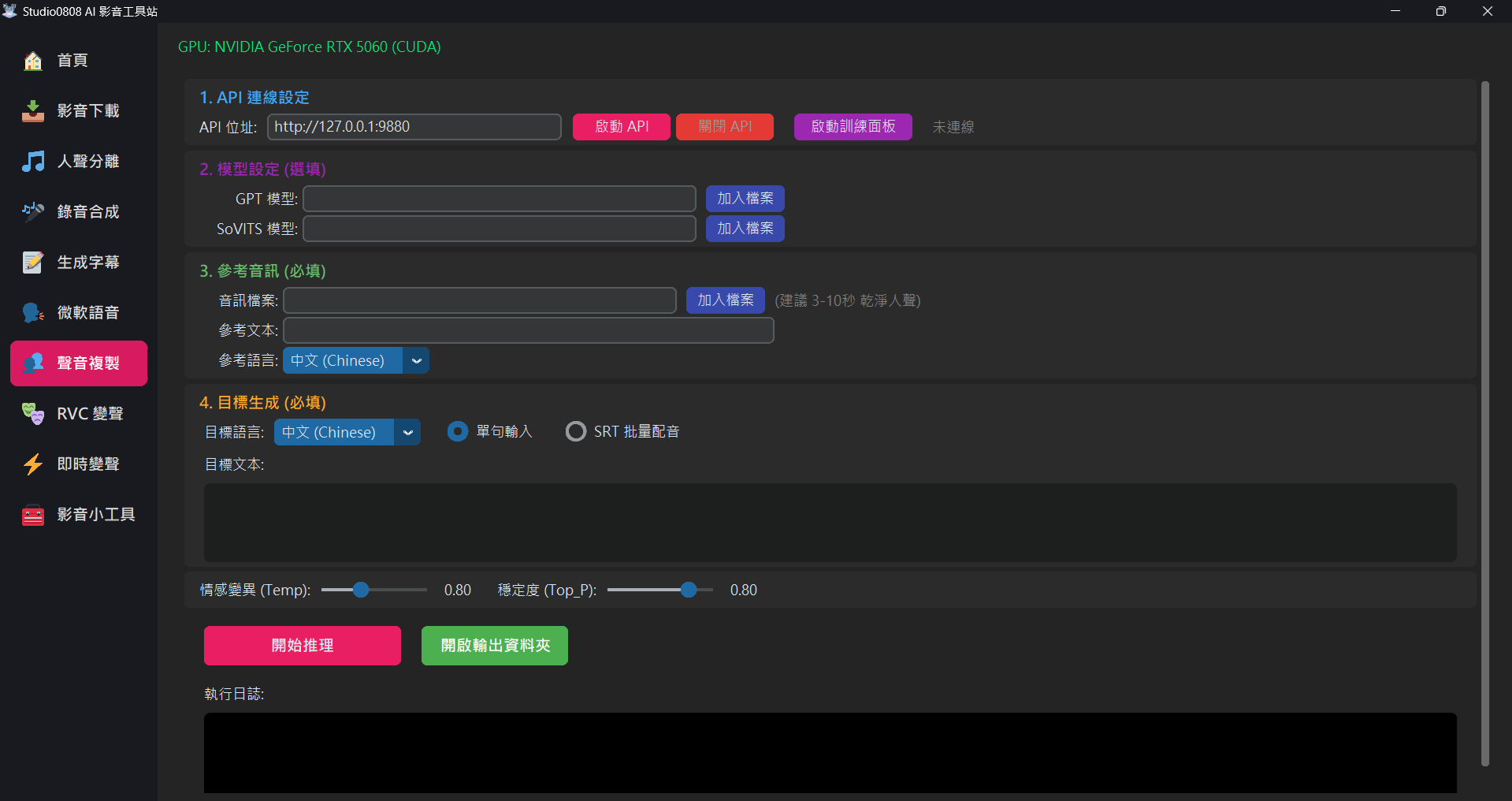
01. Overview
Voice Cloning (GPT-SoVITS) is a powerful artificial intelligence speech generation technology. It only requires a short 3 to 10 seconds of clean human voice to instantly mimic the speaker's timbre, tone, and inflection, making them speak any text you specify.
This system supports cross-lingual pronunciation. You can even use a Chinese reference voice to make the AI speak fluent English or Japanese! This technology is perfect for YouTube video dubbing, audiobook reading, or creating your own personal AI voice assistant.
02. Core Operation Flow: Five Main Sections
1. API Connection Setup
Since GPT-SoVITS is a massive core engine, we must start it before we can begin working:
- 🚀 Start API: After clicking, the program will open a black command prompt window in the background to load the deep learning models (takes about 10-20 seconds). Please wait for the "Status" to display "✅ Connected" before proceeding.
- 🛑 Stop API: When you temporarily don't
need the voice cloning feature, it is strongly recommended to click this
button. This instantly closes the hidden AI engine in the background, freeing your
graphics card memory (VRAM), ensuring your computer can smoothly edit videos or play
games.
(Note: Closing the main program entirely will also automatically close the API for you.)
2. Custom Models (Optional)
If you don't have specific needs, you can leave this completely blank, and the system will automatically use the pre-trained "Default Official Model". If you have downloaded models from the internet or trained your own, you can load them here:
- GPT Model (.ckpt): Dominates the "brain, rhythm, and phrasing habits".
- SoVITS Model (.pth): Dominates the "timbre and throat vocal characteristics".
🎙️ Deep Concept: Why have both "Models" and "Reference Audio"? Aren't they redundant?
This is a core concept that confuses many beginners. Imagine GPT-SoVITS as a singer:
- Model = The Singer's Talent (Decides who they sound like): If you load Jay Chou's custom model, it means this singer now possesses the talent to perfectly mimic Jay Chou. If you "don't load" one, the system uses a default amateur voice, which will absolutely never sound like Jay Chou. This determines the "ceiling" of voice similarity. Indeed, if you want to clone a specific celebrity's voice, preparing dedicated GPT and SoVITS models is "mandatory".
- Reference Audio = The "Starting Cue" for the Singer: Even if the singer has Jay Chou's voice, whenever he is about to sing a new song, you still need to let him hear a 3-second clip of Jay Chou's original voice. It tells him: "Oh! For this sentence, I need to speak at this speed, with this emotion, starting at this pitch!"
👉 Conclusion: If you want Jay Chou to speak, BOTH the model and reference audio are indispensable! You must load Jay Chou's .ckpt and .pth, while simultaneously providing a 3~10 second clean human voice clip of Jay Chou and its text as a reference.
3. Reference Audio (Required)
This is the key to initiating generation:
- Audio File: Please prepare a 3~10 second clean voice clip (Dry Vocal). It must not contain background music, wind noise, or reverb. If there is noise, the AI-cloned voice will inherently have that noise.
- Reference Text: You must type out word-for-word exactly what the person says in the reference audio, including punctuation. The AI uses this to analyze the relationship between the sound and the text.
- Reference Language: Select the language spoken in that audio clip.
4. Target Generation (Required)
This is the new content you want the AI to speak. The system offers two modes:
- 📝 Single Sentence Mode:
- Target Language: The language you want to output (e.g., a Chinese reference audio can output fluent Japanese).
- Target Text: Entering short sentences under 50 characters yields the best stability. Appropriately using punctuation like ",!?" can guide the AI to produce voices with greater emotional fluctuation.
- 🎬 SRT Batch Dubbing Mode Highly Rec:
- How it works: Load an
.srtsubtitle file, and the system will feed the text to the AI sentence by sentence to generate speech, then precisely paste it onto the timeline dictated by the subtitles! Finally, it merges them into a complete, long audio track (WAV). - Smart Anti-Overlap: If the AI speaks the previous sentence too slowly and the time for the next sentence arrives, the system will automatically "delay" the next audio clip backward to prevent voices from overlapping and fighting.
- Use Cases: Extremely suitable for "fully automatic video explainer dubbing" or automatically dubbing a foreign film into "full Chinese dubbing", because the timeline is already aligned for you; you just take the generated WAV file and merge it with the video!
- How it works: Load an
03. Pro-Tip: How to Make AI Sound More Natural (Punctuation Guidance)
Many users initially feel the AI sounds "stiff" or "robotic". This is usually because the input text lacks punctuation. GPT-SoVITS heavily relies on punctuation to determine rhythm and emotion:
,(Comma): Creates a short breath pause, making long sentences sound unhurried..(Period): Lowers the tone, creating a complete end-of-sentence pause.!(Exclamation): Raises the pitch, adding excited, intense, or emphasizing emotions.?(Question Mark): Raises the tone at the end of the sentence, creating an inquiring intonation....(Ellipsis): Creates a longer "thoughtful" or "hesitant" pause, perfect for adding dramatic flair.
💡 Practical Example Comparison
❌ Bad Example (No punctuation):
This is an amazing technology it can change the future dubbing industry we will see
→ Result: The AI rushes through it in one breath like a bullet train, lacking emotion.
✅ Good Example (With punctuation):
This is... an amazing technology! It can change the future dubbing industry, we, will see.
→ Result: The AI pauses to build anticipation after "This is", raises its volume at "technology!", and slows down between the commas at the end, sounding highly persuasive and human-like.
04. Training & Sourcing Custom Models
Although you can use the "Reference Audio" section above for a quick Few-Shot (3-second mimic) generation, this usually only captures about 60% of the speaker's essence, suitable for quick entertainment purposes. To achieve a 100% near-lossless similarity, you must perform Fine-Tuning for that character to produce dedicated .ckpt and .pth models.
Currently, the "Video Toolbox" focuses on providing the lightest, most stable, and cleanest "Inference" interface. We do not integrate the massive training interface into the main program. Here are the paths to acquire custom models:
Path A: Train it Yourself (Highly Recommended)
You can easily train using the official GPT-SoVITS WebUI package you originally downloaded:
- Prepare Materials: Use our built-in "Recording Assistant" or "Video Downloader" to prepare about 2~5 minutes of high-quality human voice. Please use the vocal separation and denoise tools to ensure the material is pure dry vocals.
- Open Official WebUI: Go to your
GPT-SoVITSfolder on your computer and clickgo-webui.bat(or the corresponding launcher). - Follow Tutorials: In the official web interface that pops up, sequentially perform "Audio Slicing", "ASR (Text Recognition)", and "Fine-tuning Training". We recommend searching YouTube for "GPT-SoVITS Training Tutorial". There are many step-by-step videos available online.
- Reap the Rewards: After training finishes, you will find the
.ckptand.pthfiles belonging to that character in theGPT_weightsandSoVITS_weightsfolders.
Path B: Download Models Shared by Others
- You can look for YouTuber or anime character models shared by others in AI model exchange communities (like Hugging Face or Discord groups).
- Downloads are usually compressed files. Extract them, and you will get the paired
.ckptand.pthfiles.
models\SoVITS folder. Afterwards, you can load them with one click in the "Custom Models" section of the interface!
04. Adjusting Hyperparameters
The two sliders at the bottom of the interface are magic wands to control the AI's creativity. Please only adjust them when you encounter weird noises:
| Parameter Name | Numerical Meaning | Recommended Scenario |
|---|---|---|
| Auto Split (Punctuation) Default: ON |
Automatically splits long sentences into chunks based on punctuation. | Strongly recommended to keep ON. This fixes the "3-second cutoff" issue and prevents AI hallucinations on long texts (100+ words). |
| Temperature (Temp) Default: 0.8 |
Controls the "richness and irregularity" of the output. Higher values: More emotion, but prone to slurring or noise. Lower values: Flatter, more robotic, but clearest pronunciation. |
0.8 is the sweet spot for stability and quality. Sligthly increase (1.00 ~ 1.10) if the voice is too flat. Decrease (0.60) if you hear weird noises. |
| Stability (Top_P) Default: 0.8 |
Determines the "conservatism" of the AI predicting the next word. Works with Temp. Lower is more rigid; higher is more expressive. |
Usually keep at 0.8 to match the default Temp for the highest generation success rate. |
05. Troubleshooting
Q: Why is the included GPT-SoVITS folder size as large as 13GB? Is this normal?
A: Yes, this is completely normal! This is not garbage files generated by the system, but because it contains a "complete execution environment and AI brain":
- Dedicated Python Runtime (approx. 6.6GB): Contains massive deep learning computation frameworks like PyTorch and GPU drivers, allowing you to "plug and play" without installation.
- Pre-trained AI Core Models (approx. 4.1GB): This is the foundation model brain trained by GPT-SoVITS with tens of thousands of hours of speech data, which is the key to achieving zero-shot high-quality voice mimicking.
- Peripheral Auxiliary AI Tools (approx. 1.9GB): Includes the ASR voice recognition model used to automatically generate training subtitles, and the UVR5 vocal separation model that can remove background music noise.
- Pronunciation Dictionary Library (approx. 0.6GB): Covers pronunciation rules for multiple languages, enabling the AI to accurately read Chinese, English, and Japanese.
Q: Why does clicking "🚀 Start API" keep showing connection failure?
Solution:
- Your antivirus software might have blocked the background action of opening the Python server. Please check the antivirus quarantine zone.
- Perhaps the old API crashed previously and didn't close completely. Open Windows Task Manager, force
end all processes named
python.exe, and try again.
Q: After clicking "Start Inference", the completed WAV file is empty (no sound)?
Cause & Solution:
- Most common cause: Typos in the Reference Text! If the AI cannot find the sound characteristics corresponding to the text, it will crash and output silence. Carefully verify your reference text, change all English to lowercase, and remove special emojis.
- Your loaded "Custom Model" is incompatible with the default official base version. Ensure your custom model uses the GPT-SoVITS V2 architecture.
Q: The synthesized voice always cracks, or has weird sounds like "Ah~" at the end?
Solution: This is called AI Hallucination. It's usually because your
Reference Audio background isn't clean. Be sure to use the "Recording Assistant"'s
noise reduction feature to ensure you are feeding the AI very pure human voice. Also, moderately
lowering
Temp can effectively reduce the occurrence of weird ending noises.
Q: What does "400 Bad Request" in the console window mean?
A: This is completely normal and expected! This is just the main program "pinging" the API server to check if it has finished loading. Since the API root directory doesn't have a viewable page, the server returns a 400 error. As long as your main interface shows "✅ Connected", everything is working perfectly.
Q: It says "Half-precision: False" during startup. Is it using my CPU?
A: No, it is still running on your GPU! To ensure compatibility with the latest generation GPUs (like the RTX 40/50 series), we forced full-precision (FP32) mode to prevent crashes caused by specific instruction set incompatibilities. It is still performing the heavy lifting on your graphics card, which is significantly faster than using the CPU.